
Ready to use this tool now?
Execute operations 100% locally in your browser with zero file uploads and instant results.
Step-by-Step Operational Instructions
Follow the verified workflow below to operate the QuickRectify Complete Step-by-Step Guide: Adding Text & Image Watermarks to PDF engine with complete precision and security.
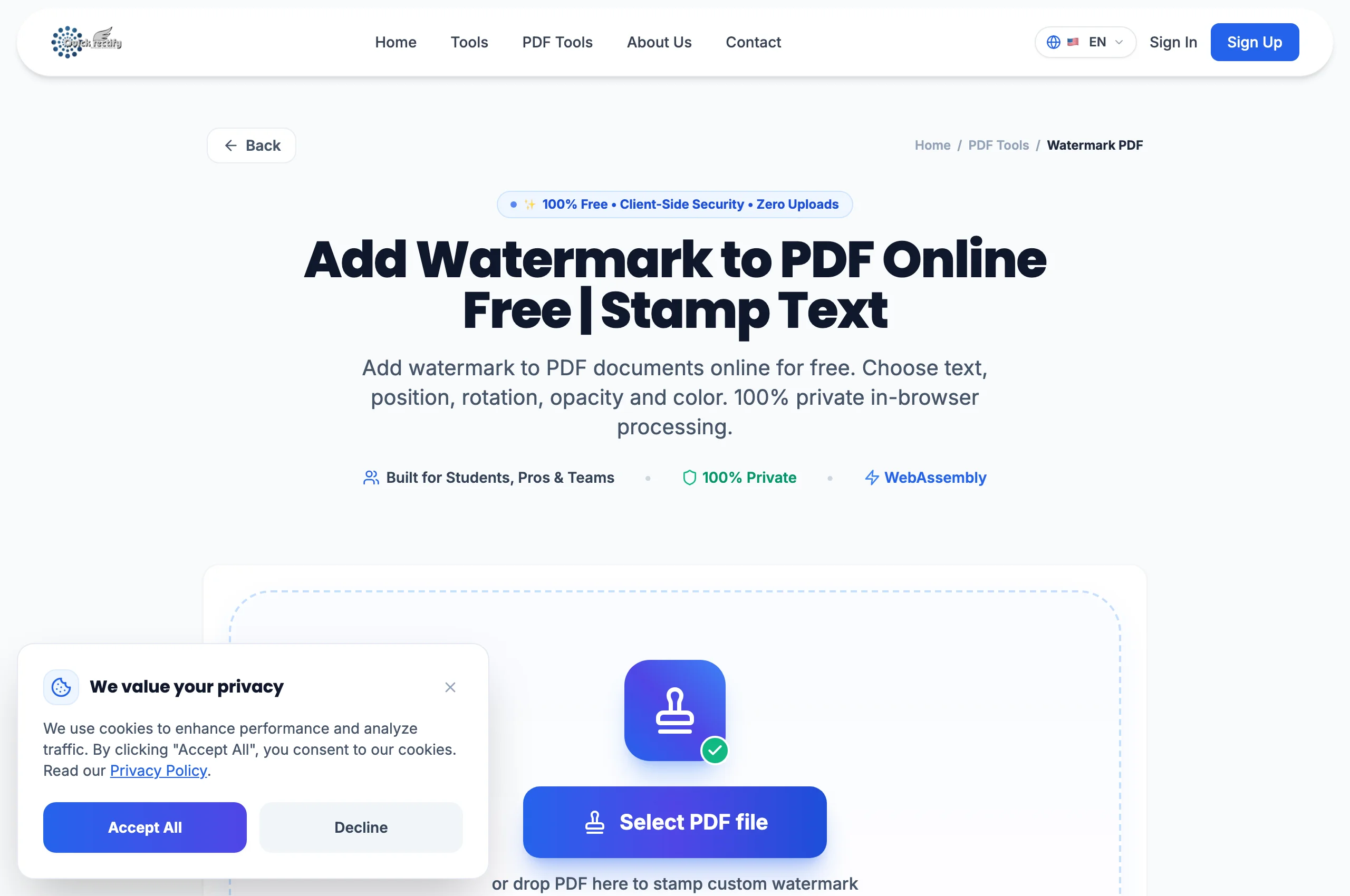
Upload the PDF Document
Open the Watermark tool and upload your PDF. The visual preview updates to reflect real-time watermark placement as you configure settings.
Configure Watermark Text, Opacity & Angle
Type your custom watermark text or upload a logo PNG. Adjust the opacity slider (typically 20% to 35% for readability) and set rotation to 45° diagonal.
Burn Watermark and Download File
Click "Apply Watermark". The engine embeds the watermark into the graphics state dictionary (`/ExtGState`) across all designated pages and downloads the stamped PDF.
Troubleshooting Common Operational Issues
• The watermark hides the text underneath it.
Reduce the opacity slider to 25% or select "Place Behind Content" to ensure underlying text remains prominently visible.
Security & Client-Side Sandbox Guarantee
Watermarking is computed in-memory via client WebAssembly. Document confidentiality is strictly maintained.