
⚡ Free Online Utility
Need to Chat with PDF AI right now?

Skip the tutorial and process your documents directly in your browser with zero file uploads, no sign-up, and 100% privacy.

Chat with PDF Free →
Tool Walkthroughs 4 min read Updated September 2026

Complete Step-by-Step Guide: Querying PDF Documents with AI

Ask natural language questions, synthesize complex legal agreements, and extract citations from 100+ page research papers in seconds.

Rahul Das
Rahul Das
Lead Document Systems Architect
← Back to Guides
Key Takeaways & Summary
  • ✓ Query research papers, annual financial reports, and vendor contracts using natural language.
  • ✓ Receive instant answers supported by exact page number citations from the text.
  • ✓ Private, high-speed document indexing and semantic retrieval.
Interactive WebAssembly Tool

Ready to use this tool now?

Execute operations 100% locally in your browser with zero file uploads and instant results.

Open CHAT WITH PDF →

Step-by-Step Operational Instructions

Follow the verified workflow below to operate the QuickRectify Complete Step-by-Step Guide: Querying PDF Documents with AI engine with complete precision and security.

1

Load PDF into the AI Chat Studio

Open Chat with PDF and upload your document. The client extracts the text tokens and prepares the document embedding index.
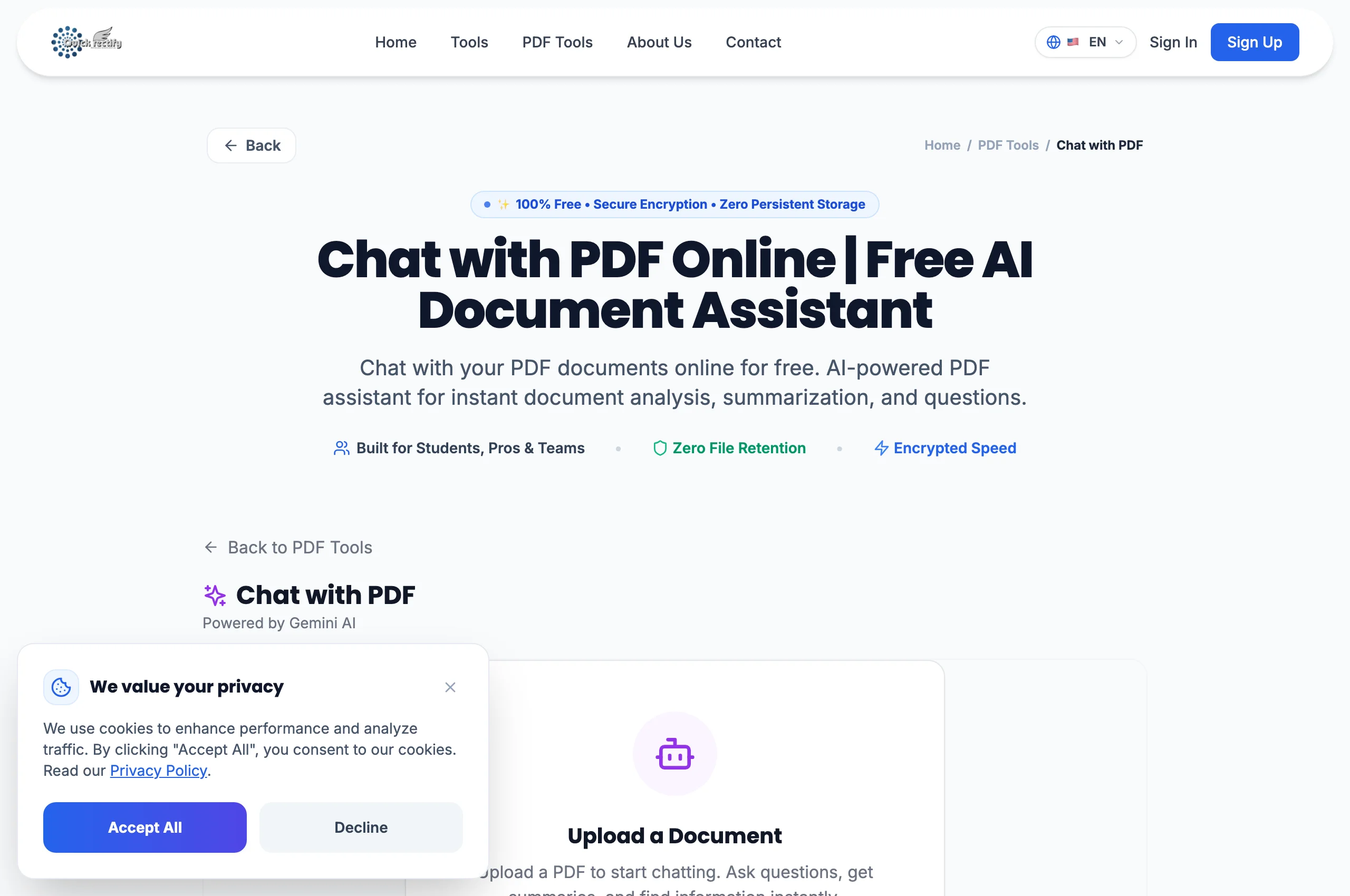
Chat with PDF interface featuring document view and AI conversation panel.
Figure 1: Chat with PDF interface featuring document view and AI conversation panel.
⚠
Pro Tip: Works exceptionally well with technical manuals, clinical trials, and lengthy financial earnings releases.
2

Ask Questions & Request Specific Clauses

Type questions into the chat prompt, such as "What is the termination clause in Section 8?" or "Summarize the Q3 revenue metrics in tabular format".

Interactive conversational Q&A displaying grounded answers and exact page references.
Figure 2: Interactive conversational Q&A displaying grounded answers and exact page references.
⚠
Pro Tip: Ask follow-up questions to drill down into nuanced clauses or request bulleted comparisons.
3

Copy Citations & Export Key Insights

Review the generated summary and click on cited page references to verify the source context in the document viewer. Copy synthesized answers directly into your reports.

Verifying citations and copying structured answers into external workflows.
Figure 3: Verifying citations and copying structured answers into external workflows.
⚠
Pro Tip: You can query multiple distinct sections of the document in a single conversational thread.

Troubleshooting Common Operational Issues

• The AI says it cannot find information in my document.

Verify that the document contains machine-readable text. If the PDF is a raw image scan, run it through QuickRectify OCR PDF first.

Security & Client-Side Sandbox Guarantee

Zero-Knowledge Processing Architecture

Enterprise-grade privacy protections ensure your proprietary files and questions remain confidential.

Direct Access

Launch How to Chat with PDF

Open Tool →
Verified Answers

Frequently Asked Questions

Are my uploaded documents used to train AI models?

No. Documents are processed ephemerally solely to answer your questions and are never used for machine learning training.

QuickRectify In-Browser Engine

Ready to Take Action on Your Documents?

Experience zero-upload client-side WebAssembly processing. Convert, compress, merge, and edit with guaranteed privacy.

Free Online Utility: Chat with PDF AI

Chat with PDF Free →