
⚡ Free Online Utility
Need to Compare Two PDFs right now?

Skip the tutorial and process your documents directly in your browser with zero file uploads, no sign-up, and 100% privacy.

Compare PDF Files Free →
Tool Walkthroughs 4 min read Updated September 2026

Complete Step-by-Step Guide: Comparing Two PDFs for Differences

Spot contractual revisions, unauthorized text alterations, and layout changes between document versions with side-by-side highlighted visual diffing.

Rahul Das
Rahul Das
Lead Document Systems Architect
← Back to Guides
Key Takeaways & Summary
  • ✓ Side-by-side synchronized scrolling between Original and Revised document versions.
  • ✓ Color-coded diffing: green highlights for added text, red for deletions, and yellow for modifications.
  • ✓ Ideal for contract negotiations, legal redlines, and code documentation review.
Interactive WebAssembly Tool

Ready to use this tool now?

Execute operations 100% locally in your browser with zero file uploads and instant results.

Open COMPARE PDF →

Step-by-Step Operational Instructions

Follow the verified workflow below to operate the QuickRectify Complete Step-by-Step Guide: Comparing Two PDFs for Differences engine with complete precision and security.

1

Upload Original and Revised PDF Documents

Open the Compare PDF tool. Upload Document A (Original Version) into the left bay and Document B (Revised Version) into the right bay.
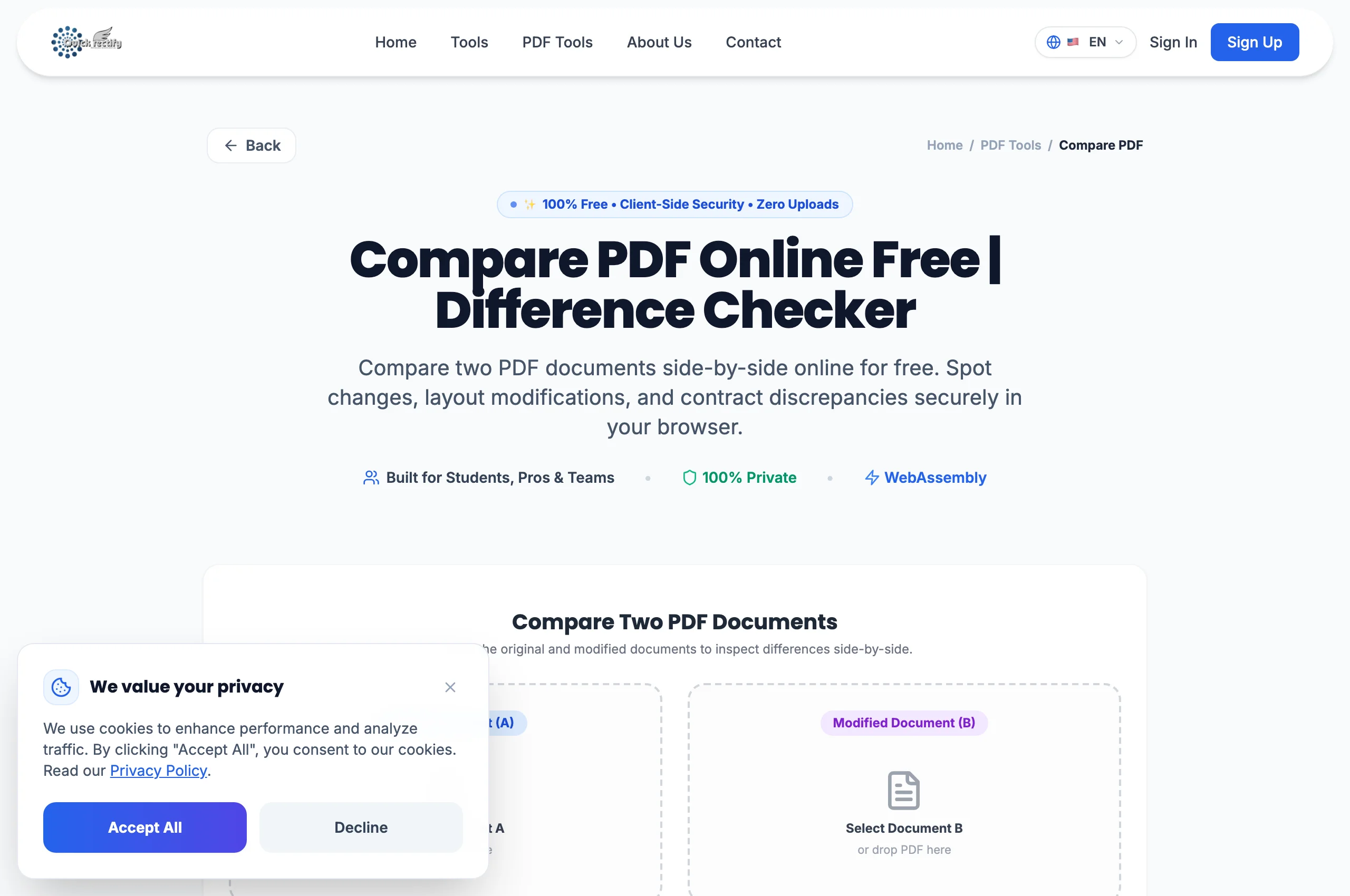
Dual-bay document staging area for baseline and revision comparison.
Figure 1: Dual-bay document staging area for baseline and revision comparison.
⚠
Pro Tip: Name your files clearly (e.g. Contract_v1.pdf vs Contract_v2.pdf) to avoid confusing baselines.
2

Run Automated Diff Comparison

Click "Compare Documents". The comparison engine performs token-level semantic diffing and pixel-level raster comparison across corresponding pages.

Synchronized visual diff showing additions, deletions, and alterations highlighted.
Figure 2: Synchronized visual diff showing additions, deletions, and alterations highlighted.
⚠
Pro Tip: Toggle between "Text Diff" (for word changes) and "Visual Diff" (for margin and graphic revisions).
3

Inspect Changes and Export Redline Report

Scroll through the synchronized viewports. The change summary drawer catalogs every modification by page number and timestamp. Export the highlighted redline comparison.

Exporting audit-ready redline documentation for legal and client review.
Figure 3: Exporting audit-ready redline documentation for legal and client review.
⚠
Pro Tip: Use the change navigation arrows to jump directly to the next modified clause.

Troubleshooting Common Operational Issues

• Why does a slight font change trigger a diff on the entire page?

In Visual Diff mode, typographic kerning alters pixel values. Switch to "Text Diff" mode to isolate textual modifications independently of font rendering.

Security & Client-Side Sandbox Guarantee

Zero-Knowledge Processing Architecture

Document comparisons run in-browser to protect confidential negotiations and merger agreements.

Direct Access

Launch How to Compare Two PDF Files

Open Tool →
Verified Answers

Frequently Asked Questions

Can I compare documents with different total page counts?

Yes. The algorithm aligns corresponding sections dynamically even if pages were added or deleted midway through the revision.

QuickRectify In-Browser Engine

Ready to Take Action on Your Documents?

Experience zero-upload client-side WebAssembly processing. Convert, compress, merge, and edit with guaranteed privacy.

Free Online Utility: Compare Two PDFs

Compare PDF Files Free →