
⚡ Free Online Utility
Need to Merge PDF Files right now?

Skip the tutorial and process your documents directly in your browser with zero file uploads, no sign-up, and 100% privacy.

Merge PDF Files Free →
Tool Walkthroughs 4 min read Updated September 2026

Complete Step-by-Step Guide: Merging Multiple PDF Files

Learn how to combine bank statements, legal contracts, and scanned receipts into a single, perfectly structured PDF document without server uploads.

Rahul Das
Rahul Das
Lead Document Systems Architect
← Back to Guides
Key Takeaways & Summary
  • ✓ Drag and drop multiple files simultaneously or add additional documents incrementally before compilation.
  • ✓ Reorder individual documents visually by dragging tiles to establish the exact sequence before concatenation.
  • ✓ The entire merging routine executes inside your local browser memory via WebAssembly without transferring data to remote servers.
  • ✓ Embedded bookmarks and outline trees from source documents are automatically consolidated into the merged PDF table of contents.
Interactive WebAssembly Tool

Ready to use this tool now?

Execute operations 100% locally in your browser with zero file uploads and instant results.

Open MERGE PDF →

Step-by-Step Operational Instructions

Follow the verified workflow below to operate the QuickRectify Complete Step-by-Step Guide: Merging Multiple PDF Files engine with complete precision and security.

1

Select or Drop Your PDF Files

Navigate to the Merge PDF tool. Click the primary "Select PDF files" button or drag and drop any number of PDF documents from your desktop directly into the dashed dropzone area. There are no arbitrary file count or document size restrictions.
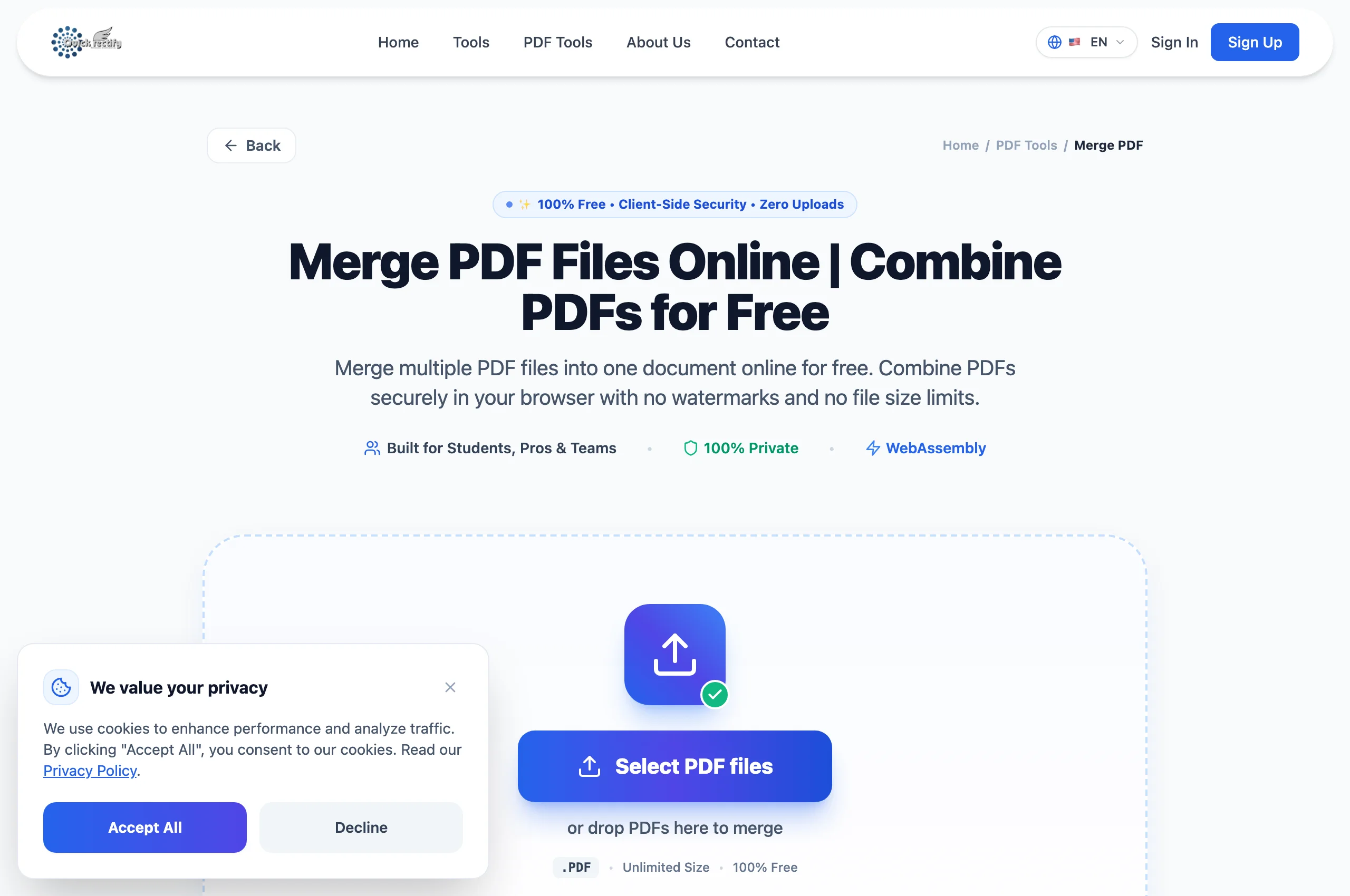
QuickRectify Merge PDF Dropzone Interface with Client-Side Privacy Verification.
Figure 1: QuickRectify Merge PDF Dropzone Interface with Client-Side Privacy Verification.
⚠
Pro Tip: You can hold down Ctrl (or Command on macOS) to select multiple files at once in your operating system file picker.
2

Reorder Document Sequence & Review Page Counts

Once files are loaded into local memory, QuickRectify displays interactive preview cards for each document showing filename and page count. Click and drag any card horizontally or vertically to reorder the sequence. Use the "Remove" icon on any document if you selected it by mistake.

Visual Document Reordering & Pre-Merge Sequence Staging.
Figure 2: Visual Document Reordering & Pre-Merge Sequence Staging.
⚠
Pro Tip: For large corporate filings, arrange cover letters, executive summaries, and appendices in the staging tray before triggering the merger.
3

Execute Client-Side Merge & Download Instantly

Click the prominent "Merge PDF" button. The WebAssembly engine reads each PDF stream, resolves cross-reference offsets, normalizes internal object references, and generates the combined document. Your browser will instantly prompt you to save the unified file.

Instant In-Memory PDF Compilation & One-Click Secure Download.
Figure 3: Instant In-Memory PDF Compilation & One-Click Secure Download.
⚠
Pro Tip: Because processing happens locally in WebAssembly, merging 200+ pages takes less than 1.5 seconds without consuming cellular upload bandwidth.

Troubleshooting Common Operational Issues

• One of my PDF files fails to load or shows a locked padlock icon.

The source file is password-protected with an Owner or User encryption key. Use the QuickRectify Unlock PDF tool first to decrypt the permissions before merging.

• The merged file page sizes look inconsistent (e.g., A4 mixed with US Letter).

QuickRectify preserves original page dimensions exactly as authored. If standardized margins are mandatory for binding or printing, use the Page Numbers or Crop tool after merging.

Security & Client-Side Sandbox Guarantee

Zero-Knowledge Processing Architecture

Merge PDF executes strictly within browser WebAssembly memory buffers. Your proprietary agreements, contracts, and financial statements never travel across the internet.

Direct Access

Launch How to Merge PDF Files

Open Tool →
Verified Answers

Frequently Asked Questions

Does merging compress or reduce the resolution of images in my PDFs?

No. The merger performs a stream-level byte concatenation of document objects without re-encoding bitmap imagery, preserving vector crispness and high-DPI scans completely.

What is the maximum number of PDFs I can combine simultaneously?

QuickRectify imposes no software artificial cap. You can combine dozens of files up to your device available browser RAM (typically 2GB to 4GB of PDF data).

QuickRectify In-Browser Engine

Ready to Take Action on Your Documents?

Experience zero-upload client-side WebAssembly processing. Convert, compress, merge, and edit with guaranteed privacy.

Free Online Utility: Merge PDF Files

Merge PDF Files Free →