
⚡ Free Online Utility
Need to OCR Scanned PDF right now?

Skip the tutorial and process your documents directly in your browser with zero file uploads, no sign-up, and 100% privacy.

OCR PDF Online Free →
Tool Walkthroughs 5 min read Updated September 2026

Complete Step-by-Step Guide: Optical Character Recognition (OCR)

Transform flattened scanned receipts, book pages, and paper archives into fully searchable, selectable, and copyable digital PDF documents using client-side OCR.

Rahul Das
Rahul Das
Lead Document Systems Architect
← Back to Guides
Key Takeaways & Summary
  • ✓ Synthesizes an invisible OCR text layer underneath original scanned bitmaps, preserving exact visual appearance while making text selectable.
  • ✓ Supports multi-language recognition including English, Spanish, German, French, and technical symbols.
  • ✓ Runs using client-side WebAssembly neural engines without uploading sensitive identity cards or invoices to remote servers.
Interactive WebAssembly Tool

Ready to use this tool now?

Execute operations 100% locally in your browser with zero file uploads and instant results.

Open OCR PDF →

Step-by-Step Operational Instructions

Follow the verified workflow below to operate the QuickRectify Complete Step-by-Step Guide: Optical Character Recognition (OCR) engine with complete precision and security.

1

Upload the Scanned Document or Image PDF

Open the OCR PDF tool and drop your scanned document into the processing bay. QuickRectify inspects the raster pages and prepares the neural OCR engine in browser memory.
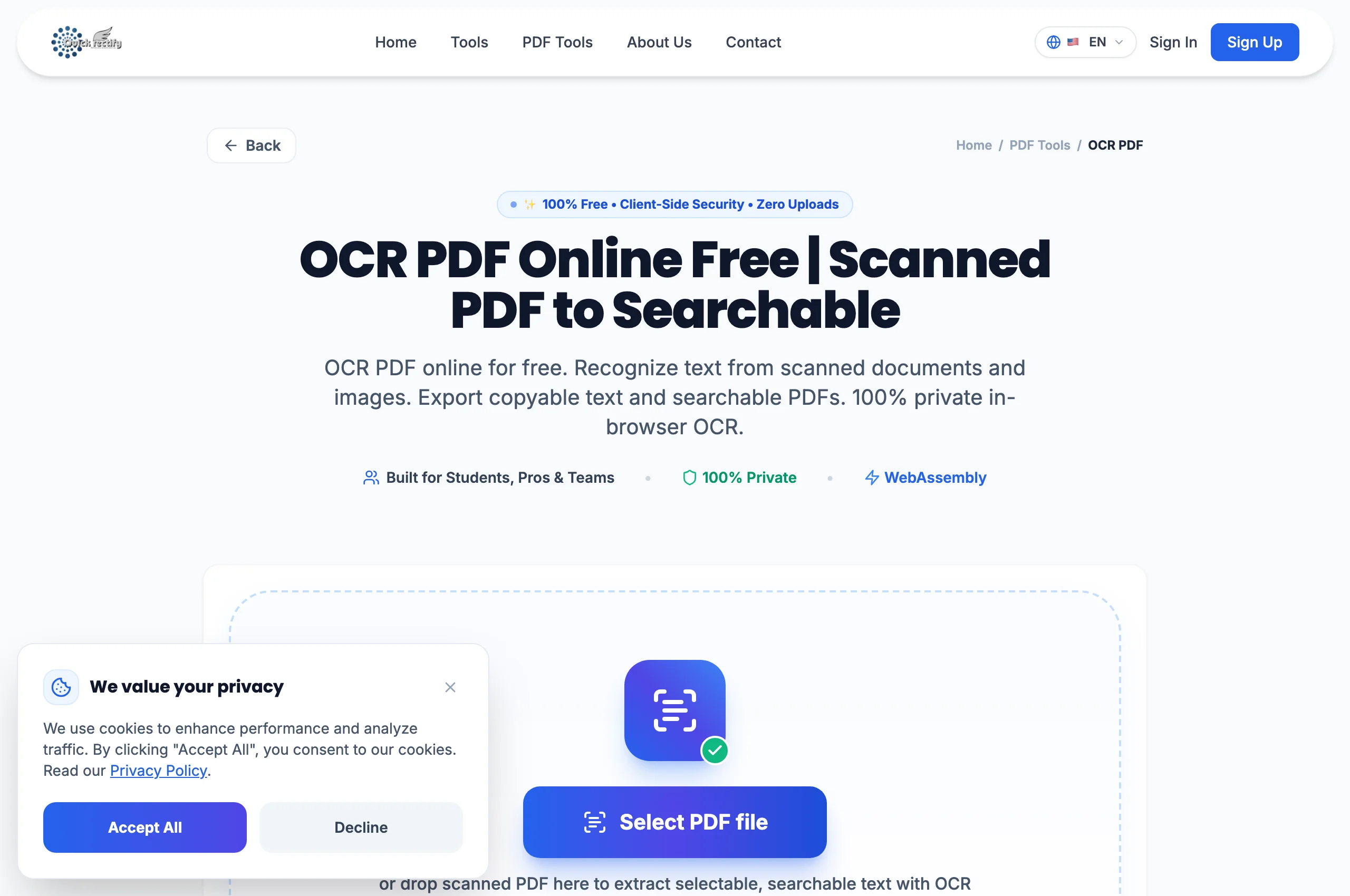
OCR PDF tool setup and neural recognition initialization.
Figure 1: OCR PDF tool setup and neural recognition initialization.
⚠
Pro Tip: Scans at 300 DPI yield the highest character recognition accuracy for small legal print.
2

Select Document Language & Precision Mode

Choose the primary language of the source text. The language dictionary assists the neural net in distinguishing ambiguous characters (such as "1", "l", and "I" or "0" and "O").

Language model selection and OCR accuracy parameters.
Figure 2: Language model selection and OCR accuracy parameters.
⚠
Pro Tip: For bilingual documents, select the primary dominant language for the highest overall confidence score.
3

Run Recognition and Download Searchable PDF

Click "Start OCR". The engine recognizes glyphs page by page, calculates character bounding boxes, and injects invisible vector text directly beneath each word. Download the enriched PDF and search for words using Ctrl+F.

Generated searchable PDF with live text selection and searchability.
Figure 3: Generated searchable PDF with live text selection and searchability.
⚠
Pro Tip: You can now copy and paste paragraphs directly from your scanned document into emails or spreadsheets.

Troubleshooting Common Operational Issues

• Some numbers or handwriting were misrecognized.

OCR neural models are optimized for printed mechanical typography. Highly cursive handwriting requires clean contrast and higher scanner resolution.

Security & Client-Side Sandbox Guarantee

Zero-Knowledge Processing Architecture

Unlike cloud OCR APIs (Google Cloud Vision, AWS Textract) that read and store your private files on third-party servers, QuickRectify processes OCR entirely inside your local browser memory.

Direct Access

Launch How to OCR Scanned PDF

Open Tool →
Verified Answers

Frequently Asked Questions

Does running OCR alter the visual appearance of my original scan?

No. The visual scanned image remains 100% unaltered. The recognized characters are positioned in an invisible text layer directly behind the image, enabling instant searchability.

QuickRectify In-Browser Engine

Ready to Take Action on Your Documents?

Experience zero-upload client-side WebAssembly processing. Convert, compress, merge, and edit with guaranteed privacy.

Free Online Utility: OCR Scanned PDF

OCR PDF Online Free →