
⚡ Free Online Utility
Need to Split PDF Pages right now?

Skip the tutorial and process your documents directly in your browser with zero file uploads, no sign-up, and 100% privacy.

Split PDF Online Free →
Tool Walkthroughs 4 min read Updated September 2026

Complete Step-by-Step Guide: Splitting PDFs and Extracting Pages

Extract individual pages, separate specific page ranges, or break large eBooks and legal exhibits into standalone PDF documents in seconds.

Rahul Das
Rahul Das
Lead Document Systems Architect
← Back to Guides
Key Takeaways & Summary
  • ✓ Extract continuous ranges (e.g. 5-12) or discrete non-consecutive pages (e.g. 1, 3, 7-9).
  • ✓ Optionally split every single page into separate individual PDF files packaged cleanly.
  • ✓ Maintains original vector typography, hyperlinks, and document security.
Interactive WebAssembly Tool

Ready to use this tool now?

Execute operations 100% locally in your browser with zero file uploads and instant results.

Open SPLIT PDF →

Step-by-Step Operational Instructions

Follow the verified workflow below to operate the QuickRectify Complete Step-by-Step Guide: Splitting PDFs and Extracting Pages engine with complete precision and security.

1

Load the Source PDF Document

Access the Split PDF tool and load your file via drag-and-drop or file browser. The tool immediately renders the total page count and establishes your local document session.
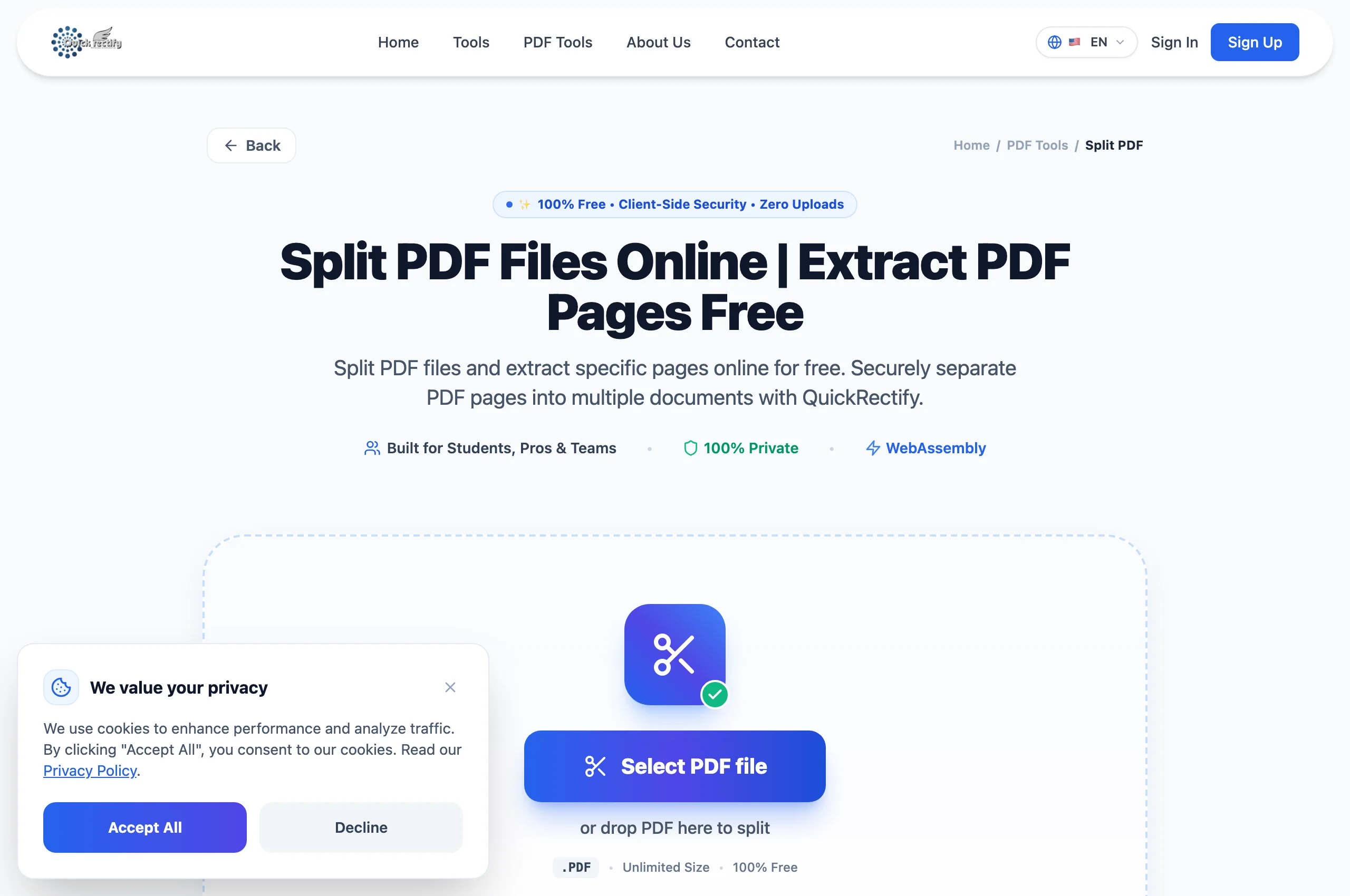
QuickRectify Split PDF file staging area and page count detector.
Figure 1: QuickRectify Split PDF file staging area and page count detector.
⚠
Pro Tip: Confirm the exact page numbers you need by glancing at the thumbnail grid before specifying ranges.
2

Define Extraction Ranges or Split Mode

Choose between "Extract Pages" (where you input custom numbers like "1, 4-8, 12") or "Split by Range" (to divide a 50-page document into 10-page chapters). QuickRectify validates your syntax in real time.

Configuring custom page ranges and extraction mode parameters.
Figure 2: Configuring custom page ranges and extraction mode parameters.
⚠
Pro Tip: Use hyphenated syntax for consecutive blocks (e.g. 14-25) and commas for standalone pages.
3

Extract and Save Separated Files

Click "Split PDF". The engine clones only the referenced page trees, discards unneeded object streams, rebuilds the cross-reference table, and outputs your extracted document immediately.

Completed extraction ready for instant single-click local download.
Figure 3: Completed extraction ready for instant single-click local download.
⚠
Pro Tip: If splitting into multiple individual files, QuickRectify packages them into a clean, organized ZIP archive.

Troubleshooting Common Operational Issues

• The split document has broken internal page hyperlinks.

If internal links pointed to pages that were omitted from your extraction range, the PDF viewer will disregard them because target destinations no longer exist.

Security & Client-Side Sandbox Guarantee

Zero-Knowledge Processing Architecture

Extracting pages from proprietary dossiers, financial records, or medical charts occurs entirely in your browser sandbox with zero network transmission.

Direct Access

Launch How to Split PDF Pages Online

Open Tool →
Verified Answers

Frequently Asked Questions

Can I extract just one specific page from a 500-page manual?

Yes. Simply enter that single page number (e.g. "42") and QuickRectify will produce a clean, 1-page standalone document.

QuickRectify In-Browser Engine

Ready to Take Action on Your Documents?

Experience zero-upload client-side WebAssembly processing. Convert, compress, merge, and edit with guaranteed privacy.

Free Online Utility: Split PDF Pages

Split PDF Online Free →